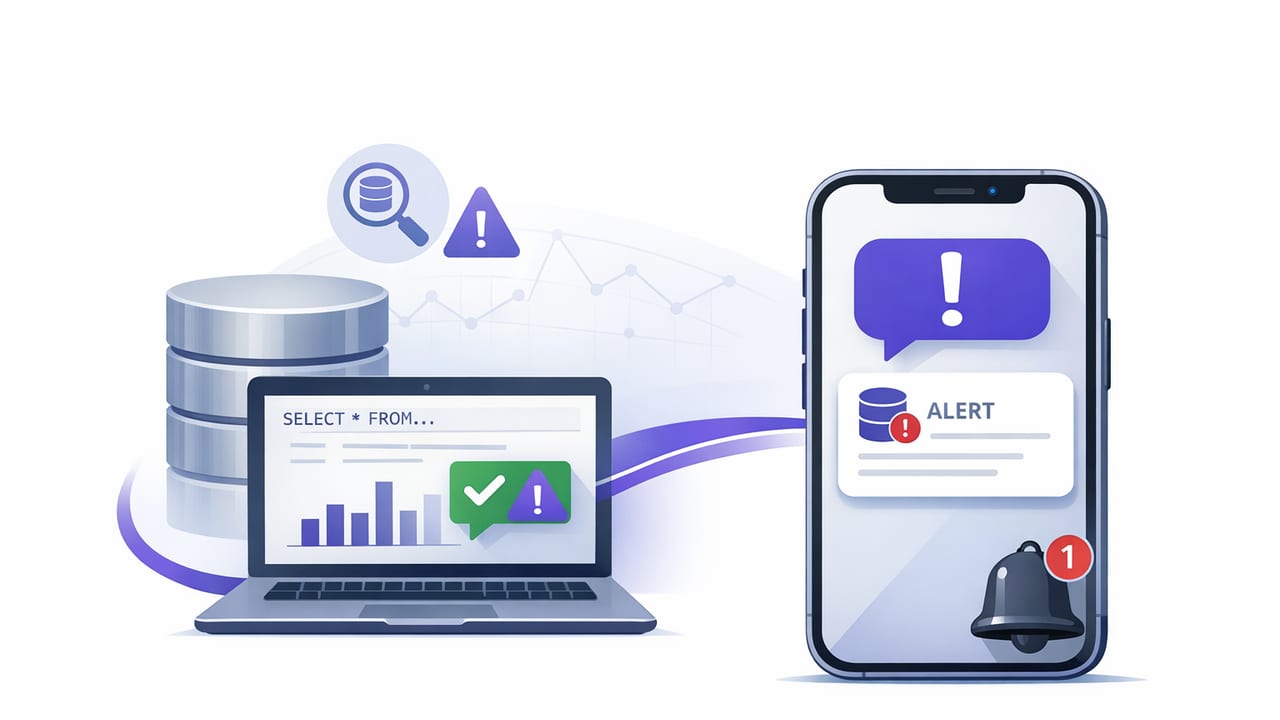
When you’re responsible for data quality, billing events, signups, jobs, or customer-facing metrics, you usually don’t need a full observability platform just to answer one question: “Did this number change in a way I should care about?” A lightweight approach is to turn a single PostgreSQL query into an alert that runs on a schedule and notifies you on your phone.
This guide shows a practical way to set up postgres query alerts on iphone without risky permissions or heavy infrastructure. You’ll learn how to write safe read-only queries, choose thresholds, schedule checks, and avoid common performance pitfalls.
What a “Postgres query alert” actually is
A query alert is a recurring database check with three parts:
- Query: a read-only SQL statement that returns a value (count, sum, timestamp, status rows).
- Condition: rules that decide whether to alert (greater than, less than, changed, missing rows, anomaly window).
- Delivery: push notification, email, or both.
Instead of staring at dashboards, you only get interrupted when the query result indicates something meaningful.
Rule of thumb: A good alert is actionable, rare, and specific.
Step 1: Decide what you want to catch (use cases)
Start by naming the failure mode. Here are common alert patterns that work well on mobile:
- Drop in volume: fewer orders, events, or signups than expected.
- Backlog growth: queued jobs or unprocessed rows growing beyond a threshold.
- Staleness: last update timestamp too old (pipeline stalled).
- Error spikes: sudden increase in failed jobs or 5xx records.
- Missing daily row: expected “heartbeat” row didn’t arrive.
Pick one metric per alert. If you try to catch everything with a single query, you’ll create noisy alerts that are hard to interpret on a phone screen.
Step 2: Create a read-only, least-privilege database user
Mobile alerts should never depend on privileged credentials. Create a dedicated Postgres role that can only read the specific tables/views needed.
-- 1) Create a role with a strong password (use your secret manager policy)
CREATE ROLE alert_reader LOGIN PASSWORD 'REDACTED_STRONG_PASSWORD';

-- 2) Restrict access: allow connect + read on a specific schema
GRANT CONNECT ON DATABASE your_db TO alert_reader;
GRANT USAGE ON SCHEMA public TO alert_reader;

-- 3) Allow SELECT on only the required tables
GRANT SELECT ON TABLE public.orders TO alert_reader;
GRANT SELECT ON TABLE public.jobs TO alert_reader;

-- Optional: if you query views, grant on those views instead of tables
Tip: Prefer querying a view that exposes only necessary columns. It reduces accidental data exposure and keeps the alert queries consistent even if underlying tables change.
Network access: don’t open Postgres to the public internet
For phone-based monitoring, you still want strong network boundaries:
- Use a managed database that supports IP allowlists or private networking.
- If you must allow external access, enforce TLS and strict firewall rules.
- Consider a read replica for alert queries if production load is sensitive.
Step 3: Write “alert-safe” SQL (fast, stable, predictable)
Alert SQL should be:
- Read-only (no writes, no locks beyond normal reads).
- Bounded (returns a small result, ideally a single number or row).
- Index-friendly (filters on indexed columns like timestamps/status).
- Time-windowed (avoid scanning huge tables every minute).
Example A: alert when new orders drop below a threshold
-- Count orders in the last 15 minutes
SELECT COUNT(*) AS orders_15m
FROM public.orders
WHERE created_at >= NOW() - INTERVAL '15 minutes'
  AND status = 'paid';
Common condition ideas:
- Alert if
orders_15m < 5during business hours. - Use different thresholds per day/time (see “noise control” below).
Example B: alert when a pipeline is stale
SELECT NOW() - MAX(processed_at) AS lag
FROM public.jobs
WHERE job_type = 'daily_rollup'
  AND status = 'success';
This returns an interval. Many tools let you compare it to a duration (e.g., alert when lag exceeds 30 minutes).
Example C: alert when backlog grows too large
SELECT COUNT(*) AS pending_jobs
FROM public.jobs
WHERE status = 'queued'
  AND created_at >= NOW() - INTERVAL '24 hours';
Why the 24-hour window? It prevents a full-table scan if your jobs table is large and old rows are irrelevant to the alert.
Performance check: run EXPLAIN before you alert on it
Before scheduling a query frequently, verify it uses indexes and doesn’t scan massive data:
EXPLAIN (ANALYZE, BUFFERS)
SELECT COUNT(*)
FROM public.orders
WHERE created_at >= NOW() - INTERVAL '15 minutes'
  AND status = 'paid';
If you see sequential scans on large tables, add or adjust indexes (e.g., a composite index on (status, created_at)) or narrow the time range.
Step 4: Choose an alert condition that reduces noise
Noise is the #1 reason people stop trusting alerts. The following patterns stay meaningful on mobile:
Threshold (simple and effective)
- Low watermark: alert if count is below N.
- High watermark: alert if backlog above N.
Change detection
Alert when a value changes from the previous run (e.g., a config flag flips, a feature rollout begins). This is best when changes are rare.
Time-based staleness
Alert if “latest timestamp is older than X.” This is ideal for ingestion pipelines.
Two-step confirmation
If your tooling supports it, require the condition to be true for 2 consecutive checks (e.g., 2 × 5 minutes) before notifying. This filters transient blips.
Step 5: Decide the check interval (and what it costs)
Intervals should match how quickly you can act and how expensive the query is:
| Scenario | Typical interval | Notes |
|---|---|---|
| Payment / checkout issues | 1–5 minutes | Use small time windows and indexed filters. |
| ETL / batch pipelines | 10–30 minutes | Staleness alerts are usually enough. |
| Daily business metrics | Hourly / daily | Consider separate “morning check” alerts. |
| Backlog monitoring | 5–15 minutes | Trend matters; avoid over-alerting. |
Cost model: A query that scans a lot of data every minute can become surprisingly expensive. Prefer narrow windows, good indexes, and views that pre-aggregate when appropriate.
Step 6: Set up iPhone notifications (push vs email)
For iPhone-based alerting, you’ll typically choose between push notifications and email:
- Push: best for urgent incidents; easy to see on lock screen; keep messages short.
- Email: better for summaries, audit trails, and less urgent issues.
A useful pattern is push for critical and email for warnings. If your tooling supports routing by severity, define two thresholds (warning vs critical) for the same query.
Step 7: Secure the connection and minimize data exposure
Because alerts may run from outside your internal network and results may appear on a phone, treat security as a first-class requirement:
- Use TLS for Postgres connections; verify certificates when possible.
- Store credentials securely (never in notes or plaintext config files).
- Prefer read-only roles and restrict schema/table access.
- Return minimal results: counts, booleans, or timestamps—not customer PII.
- Avoid SELECT *: explicitly select what you need.
Use views to prevent accidental PII in notifications
Create a view that only exposes aggregated data:
CREATE VIEW public.alert_orders_15m AS
SELECT COUNT(*) AS orders_15m
FROM public.orders
WHERE created_at >= NOW() - INTERVAL '15 minutes'
  AND status = 'paid';

GRANT SELECT ON public.alert_orders_15m TO alert_reader;
Then your alert query is simply SELECT orders_15m FROM public.alert_orders_15m;, which is harder to misuse.
Step 8: Test and tune (before trusting it)
Do a simple validation loop:
- Manual run: Execute the query in psql/your SQL client and confirm it returns what you expect.
- Edge cases: What happens when there are zero rows? Ensure the query still returns a value.
- Load check: Use
EXPLAIN (ANALYZE)and confirm it’s fast enough for your interval. - Dry run notifications: Trigger it intentionally once to confirm message format and routing.
- Adjust thresholds: Tighten or loosen after a week of real data.
Make alerts actionable by adding context
If your system supports templating, include one extra field that helps triage. For example, along with a count, also return the newest timestamp:
SELECT
  COUNT(*) AS pending_jobs,
  MAX(created_at) AS newest_pending
FROM public.jobs
WHERE status = 'queued'
  AND created_at >= NOW() - INTERVAL '24 hours';
Now the alert can tell you whether the queue is actively growing or just stuck with old items.
Common mistakes to avoid
- Alerting on raw volatility: metrics that naturally swing will generate noise. Smooth with longer windows or confirmation checks.
- Queries without time filters: they often degrade over time as tables grow.
- Using admin credentials: unnecessary risk for a monitoring task.
- Including sensitive rows in the result: keep results aggregated and minimal.
- No ownership: every alert should have a clear responder (even if it’s “whoever is on call”).
A simple checklist you can reuse
- ✅ Read-only Postgres role with restricted grants
- ✅ TLS-enabled connection and secure credential storage
- ✅ Query returns a single value or small row
- ✅ Indexed filters + time window + EXPLAIN verified
- ✅ Thresholds set to minimize noise
- ✅ Push/email routing aligned to severity
- ✅ Tested notification formatting and edge cases
Putting it together on iPhone
Once you’ve prepared a safe query and a read-only user, the iPhone setup typically looks like this in any alerting tool that supports Postgres:
- Add your Postgres connection details (host, port, database, username).
- Enable encrypted/TLS connections where available.
- Paste the read-only SQL query (or query a dedicated view).
- Choose a schedule (e.g., every 5 minutes) and condition (e.g.,
< 5). - Select notification channels (push and/or email).
- Run a test and confirm you receive the alert on your iPhone.
If you’re looking for an iOS-first way to do this with scheduled checks and smart notifications, Query Alert is one option that follows the read-only, encrypted-connection approach described above.