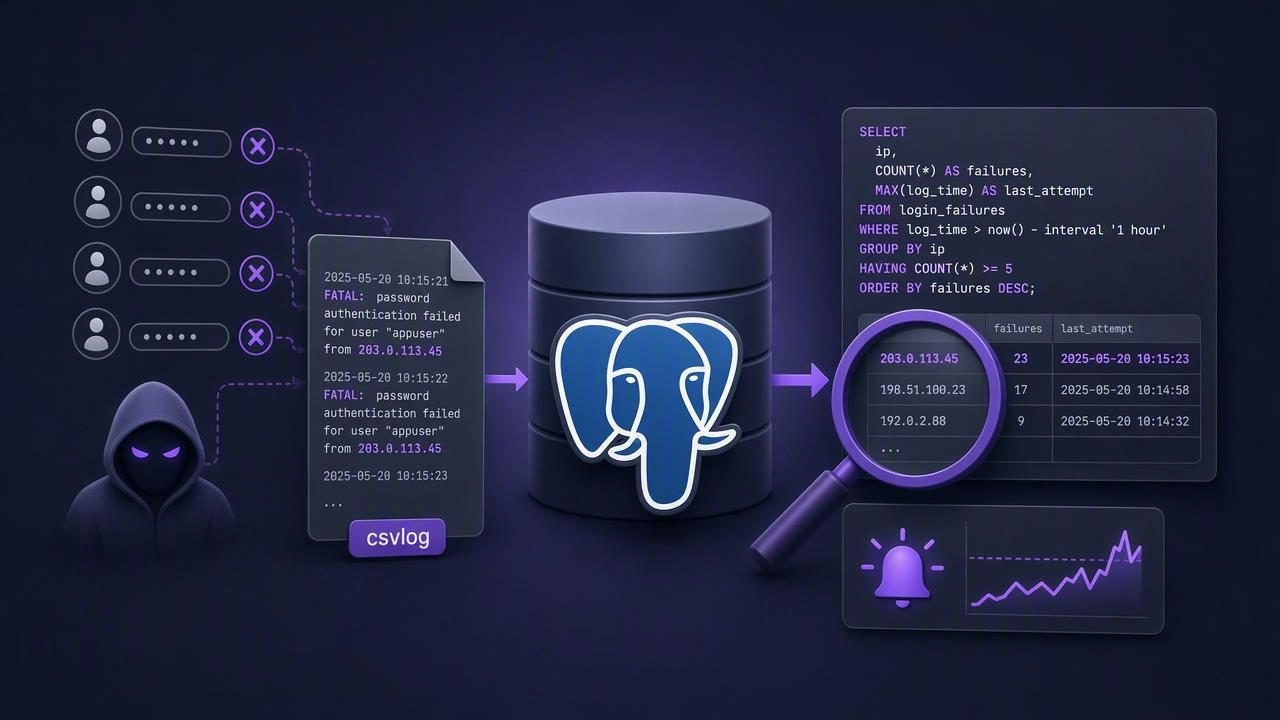
If you need to track failed logins in Postgres without triggers, you’re in luck: authentication failures are not table events, so the most reliable source is the PostgreSQL server log. With the right logging settings, you can turn those log lines into queryable data and build alerts from simple, read-only SQL—no triggers, no schema changes, and minimal risk to production workloads.
This guide shows a practical, SQL-first workflow:
- Configure Postgres to emit consistent authentication logs
- Store logs as
csvlogso they’re easy to query - Expose the current log file to SQL via
file_fdw - Write detection queries for failed logins and brute force patterns
- Operationalize checks safely (intervals, thresholds, permissions)
Why monitor failed logins?
Failed login attempts can indicate:
- Credential stuffing (reused passwords across services)
- Brute force attacks from a single IP or botnet
- Misconfigured applications (stale secrets, wrong users)
- Unexpected clients connecting from new networks
Unlike query errors, failed logins happen before a session exists—so you typically can’t detect them from tables or triggers. Logs are the canonical record.
Where Postgres records failed logins
On authentication failure, Postgres emits a FATAL log line such as:
FATAL: password authentication failed for user "app_user"
Depending on the cause, you might also see:
no pg_hba.conf entry for host(host/user/db not allowed)role "..." does not existpam authentication failed(PAM setups)
The exact formatting depends on your logging configuration. The goal is to make these events easy to parse and safe to query.
Step 1: Configure Postgres logging for authentication events
You want authentication failures recorded consistently and stored in a structured format. The most query-friendly choice is CSV logs.
Recommended settings (postgresql.conf)
These settings are commonly used to make login failures easy to identify and query:
# Enable logging collector and use CSV logs
logging_collector = on
log_destination = 'csvlog'

# Use a stable filename so SQL can read it without daily DDL changes
log_directory = 'log'
log_filename = 'postgresql.csv'
log_rotation_age = 1d
log_truncate_on_rotation = on

# Useful context (optional but recommended)
log_hostname = on
# log_connections logs successful connections; failures are logged regardless
log_connections = on

# Include useful prefix for non-CSV logs (still helpful for debugging)
log_line_prefix = '%m [%p] user=%u,db=%d,app=%a,client=%h '
Notes:
csvlogwrites structured rows with columns such as time, user, database, client address, severity, and message.- Authentication failures generally show up as
error_severity = 'FATAL'with a message like “password authentication failed…”. - Keeping a stable log filename (for example
postgresql.csv) avoids having to recreate foreign tables for each rotated file.
Step 2: Make the CSV log queryable with file_fdw
Now you’ll expose the CSV log file as a foreign table. This keeps the solution “in Postgres” while staying read-only and avoiding triggers.
Security model (important)
file_fdw reads server-side files. For safety, Postgres restricts who can define these foreign tables (typically superuser). A common pattern is:
- Create the foreign table as an admin
- Grant
SELECTon it to a dedicated monitoring role
Create the foreign table
Run this once (adjust the file path to match your environment):
-- 1) Enable the extension
CREATE EXTENSION IF NOT EXISTS file_fdw;

-- 2) Create a foreign server for file access
CREATE SERVER IF NOT EXISTS logfiles FOREIGN DATA WRAPPER file_fdw;

-- 3) Define a foreign table mapping to the CSV log
-- Path is relative to the server's data directory unless you use an absolute path.
CREATE FOREIGN TABLE IF NOT EXISTS postgres_csvlog (
  log_time                 timestamptz,
  user_name                text,
  database_name            text,
  process_id               integer,
  connection_from          text,
  session_id               text,
  session_line_num         bigint,
  command_tag              text,
  session_start_time       timestamptz,
  virtual_transaction_id   text,
  transaction_id           bigint,
  error_severity           text,
  sql_state_code           text,
  message                  text,
  detail                   text,
  hint                     text,
  internal_query           text,
  internal_query_pos       integer,
  context                  text,
  query                    text,
  query_pos                integer,
  location                 text,
  application_name         text,
  backend_type             text
)
SERVER logfiles
OPTIONS (
  filename 'log/postgresql.csv',
  format 'csv',
  header 'true'
);
If your Postgres build emits additional CSV columns, you can add them later; Postgres will ignore unmapped columns only if the mapping matches the file structure. If you hit column mismatch errors, align your column list to your version’s csvlog layout.
Grant read-only access
-- Create a dedicated role for monitoring
CREATE ROLE monitor_readonly;

-- Grant access to the foreign table
GRANT SELECT ON FOREIGN TABLE postgres_csvlog TO monitor_readonly;
Step 3: Write SQL queries to detect failed logins
With logs exposed as a table, you can write straightforward SQL that works with scheduled checks.
Query 1: Count failed logins in the last 15 minutes
SELECT
  count(*) AS failed_logins_15m
FROM postgres_csvlog
WHERE log_time >= now() - interval '15 minutes'
  AND error_severity = 'FATAL'
  AND (
    message ILIKE 'password authentication failed%'
    OR message ILIKE 'no pg_hba.conf entry%'
    OR message ILIKE 'role % does not exist%'
  );
Query 2: Who is being targeted? (usernames)
SELECT
  coalesce(user_name, '(unknown)') AS user_name,
  count(*) AS attempts
FROM postgres_csvlog
WHERE log_time >= now() - interval '1 hour'
  AND error_severity = 'FATAL'
  AND message ILIKE 'password authentication failed%'
GROUP BY 1
ORDER BY attempts DESC
LIMIT 20;
Query 3: Where is it coming from? (IP / host)
The connection_from field often looks like 1.2.3.4:54321. You can normalize it to an IP:
SELECT
  split_part(connection_from, ':', 1) AS client_ip,
  count(*) AS attempts
FROM postgres_csvlog
WHERE log_time >= now() - interval '1 hour'
  AND error_severity = 'FATAL'
  AND message ILIKE 'password authentication failed%'
  AND connection_from IS NOT NULL
GROUP BY 1
ORDER BY attempts DESC
LIMIT 20;
Query 4: Brute force detector (threshold by IP + user)
WITH recent AS (
  SELECT
    log_time,
    split_part(connection_from, ':', 1) AS client_ip,
    user_name,
    message
  FROM postgres_csvlog
  WHERE log_time >= now() - interval '10 minutes'
    AND error_severity = 'FATAL'
    AND message ILIKE 'password authentication failed%'
)
SELECT
  client_ip,
  coalesce(user_name, '(unknown)') AS user_name,
  count(*) AS attempts_10m,
  min(log_time) AS first_seen,
  max(log_time) AS last_seen
FROM recent
GROUP BY 1, 2
HAVING count(*) >= 20
ORDER BY attempts_10m DESC;
Adjust the window and threshold to match your baseline. Many systems will see occasional failed logins; what matters is spikes, persistence, and unusual sources.
Step 4: Turn queries into actionable alerts (without triggers)
Since the detection is pure SQL, you can run it on an interval (every 1–15 minutes, depending on sensitivity) and notify when results cross a threshold.
| Signal | What to query | Example threshold |
|---|---|---|
| Spike in failures | Count failed logins in 5–15 minutes | > 30 in 10 minutes |
| Brute force by IP | Attempts grouped by client IP | > 20 per IP in 10 minutes |
| User targeted | Attempts grouped by username | > 50 for one user in 1 hour |
| Misconfig / access issue | Count “no pg_hba.conf entry” | > 0 (page immediately) |
Alert hygiene tips
- Separate security from reliability alerts: “no pg_hba.conf entry” might indicate a deployment regression, not an attack.
- Include context in the alert payload: top IPs, top users, and sample messages help triage quickly.
- Don’t alert on every single failure: aim for trend changes and thresholds to avoid noise.
Operational considerations
Performance impact
CSV logging has overhead, but authentication failures are typically low volume. If you’re under active attack, log volume will increase; ensure:
- Log storage has headroom and rotation is configured
- Alerting thresholds catch spikes early
- Network controls (firewalls, security groups) can block abusive sources
Permissions and least privilege
Even if creating the foreign table requires elevated privileges, day-to-day querying should be done as a read-only role with access only to the foreign table (and nothing else). Avoid granting broad file access beyond what’s needed.
Managed Postgres (RDS, Cloud SQL, etc.)
Some managed services don’t allow server-side file access. In those cases, keep the same detection logic but move the log query layer outside Postgres:
- Export Postgres logs to the platform logging system (CloudWatch, Stackdriver, etc.)
- Filter for authentication failures and aggregate by IP/user
- Alert from your logging/SIEM stack
The key point remains: failed logins live in logs, not in triggers.
Alternatives (still “no triggers”) and when to use them
- pgAudit: Great for auditing SQL activity; less directly useful for authentication failures, which already log as FATAL events.
- Fail2ban / network rate limiting: Best when you need automated blocking at the host/network edge.
- SIEM correlation: Best when you want to correlate database failures with VPN, IAM, or application logs.
- Auth proxy (PgBouncer, cloud proxy): Useful for centralized auth logging and policy enforcement.
Minimal checklist
- Enable
logging_collectorandcsvlog - Use a stable
log_filename(or another predictable rotation strategy) - Create a
file_fdwforeign table over the CSV log - Grant
SELECTto a read-only monitoring role - Create one query for spikes and one for brute force by IP/user
- Schedule checks and alert on thresholds (include top IP/user context)
Once the queries are in place, you can run them from any scheduler or monitoring workflow. If you prefer running these checks from an iPhone with secure, read-only query alerts and push/email notifications, a tool like Query Alert can fit neatly into this approach.